How To Avoid LinkedIn Account Restrictions (Step By Step)
Managing multiple LinkedIn accounts — or running automation at scale — comes with one major risk: getting restricted. LinkedIn's detection system is sophisticated, and one wrong move can cost you your account. Here's a step-by-step guide to staying safe, using the right tools and setup.
Why LinkedIn Restricts Accounts
LinkedIn restricts accounts when it detects that multiple profiles are being accessed from the same device, browser, or IP address. The moment it links two accounts together, both are at risk. This is why the technical setup you use matters just as much as how you behave on the platform.
The safest way to avoid LinkedIn account restrictions is to make each account look like it's running from a completely separate, real device. That's exactly what an antidetect browser like GoLogin is built for.
Step 1: Download and Set Up GoLogin
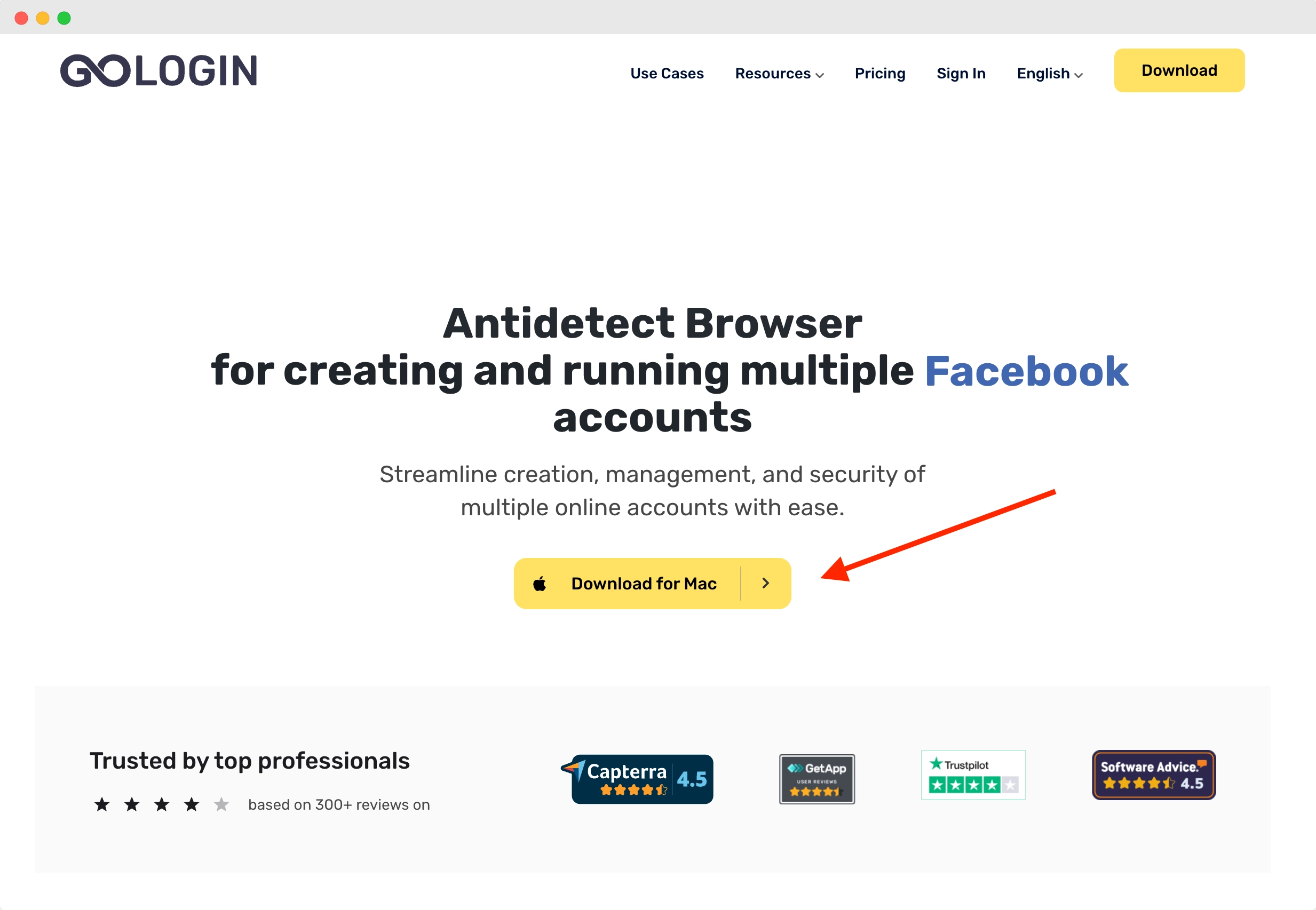
Head over to the GoLogin website and download the app on your device. It is available for all major OS versions — Windows, Mac, and Linux.
After installation, register an account with Google or email. The sign-up process is quick and includes a short onboarding quiz. A free 7-day trial of all paid features is activated immediately after sign-up — no credit card required.
Step 2: Create a Browser Profile With a Dedicated Proxy
Once inside GoLogin, your main screen shows a list of ready-made browser profiles. Each profile is a fully isolated browser session that allows you to run a separate account on any website — including LinkedIn — without any overlap.
To create a new profile and attach a LinkedIn account to it:
Click Add Profile in the top right corner to enter the profile creation screen.
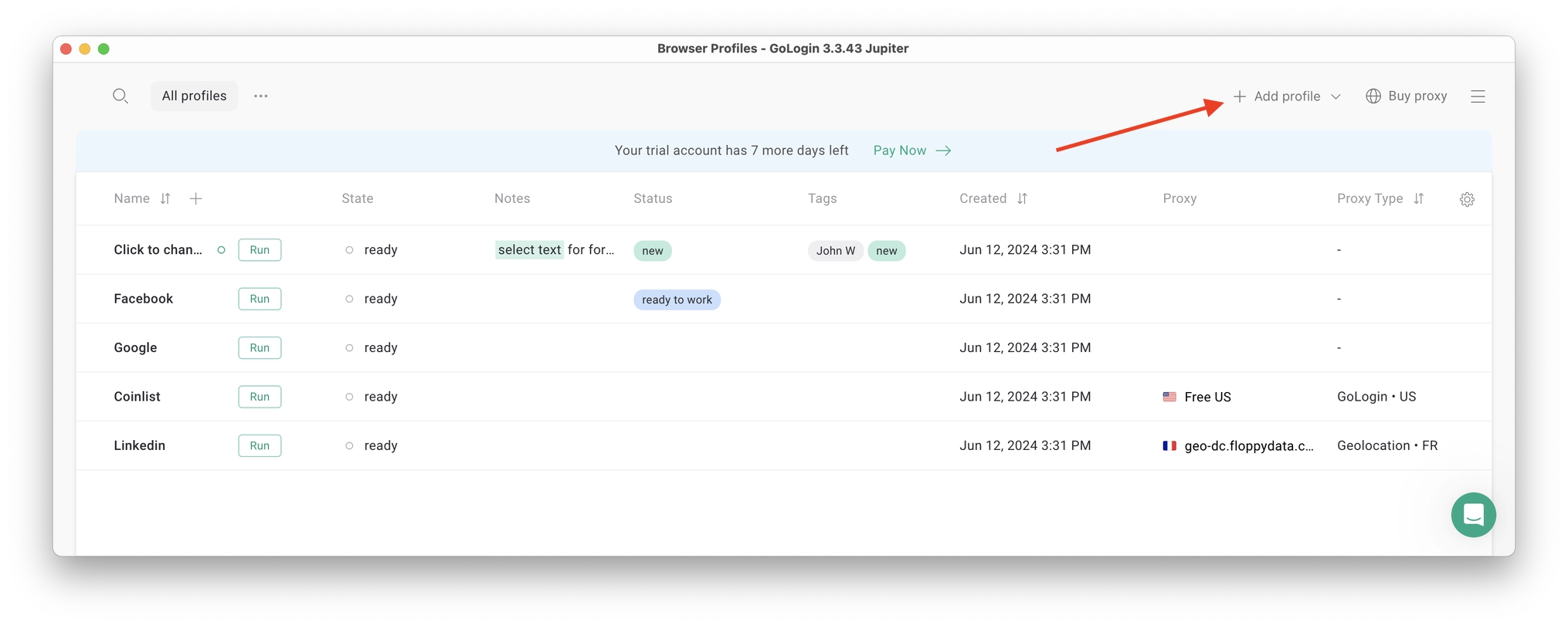
From there, you only need to configure one thing: the proxy. All other fingerprint settings are handled automatically by GoLogin.
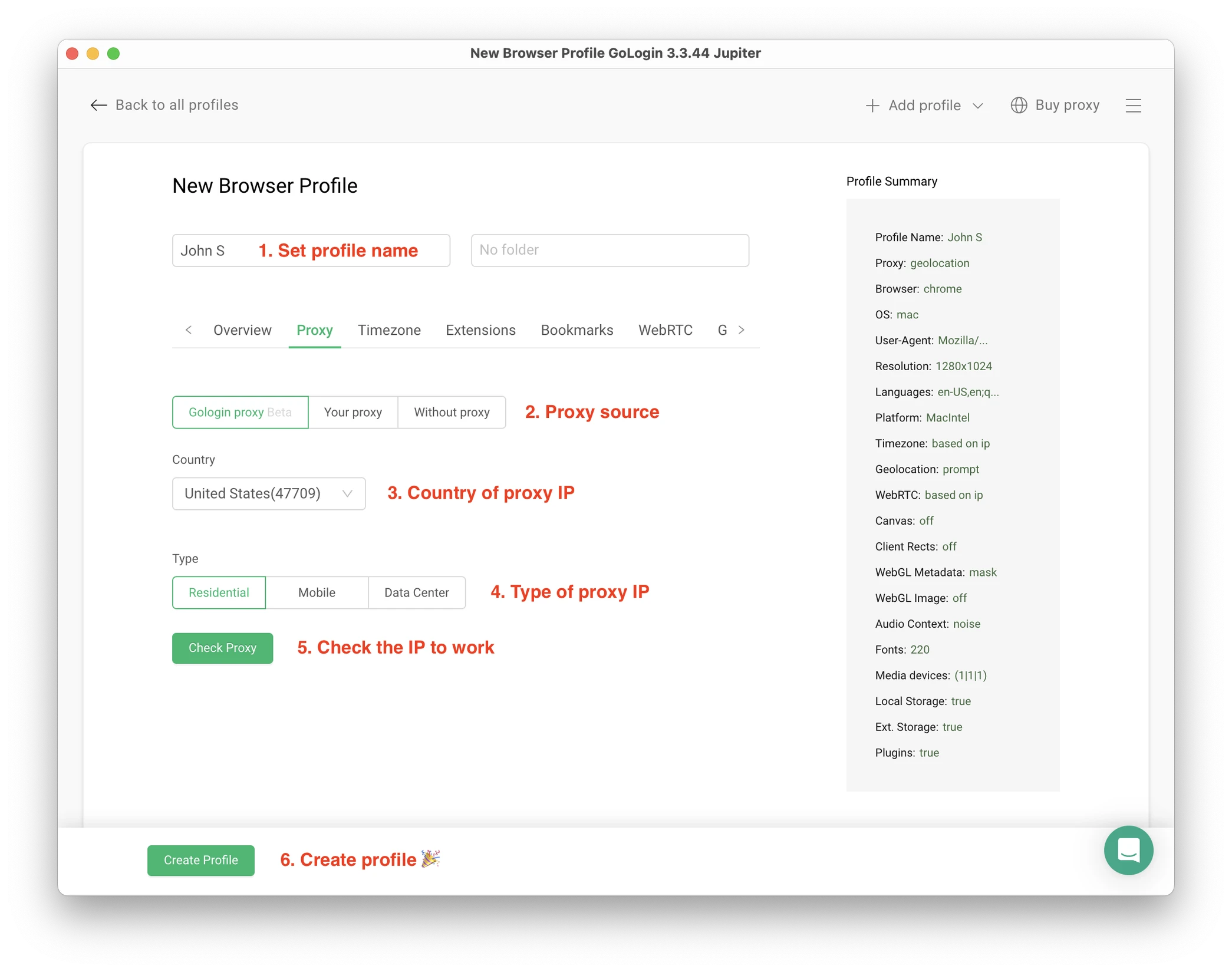
Here's how to set it up correctly:
- Set your profile name — use a clear naming convention like "LinkedIn — John S" for easy management
- Choose your proxy source — you can use GoLogin's built-in proxy (paid per GB, with free traffic to test) or paste your own third-party proxy
- Pick the country of your proxy IP from the dropdown list — match it to the account's expected location
- Select Residential proxy type — residential IPs look like normal home or office connections, making them far harder for LinkedIn to detect
- Click Check Proxy to verify the IP is clean and working, then click Create Profile
3 Essential Rules for Safe Proxy Use
- Always give each browser profile its own separate IP address. Running two profiles on the same IP is the fastest way to get both accounts restricted.
- Third-party proxies work perfectly fine in GoLogin. You can paste multiple IPs in bulk with one click.
- Never use free proxies. They are shared across thousands of users, unreliable, and frequently collect your data.
Step 3: Import a Proxy From a Store-Bought or Rented Account
If you're using a LinkedIn account that was transferred to you by a vendor, it will typically come with a fixed proxy IP address attached. You must use that specific IP to avoid triggering a suspicious login alert from an unrecognized location.
To import it into GoLogin:
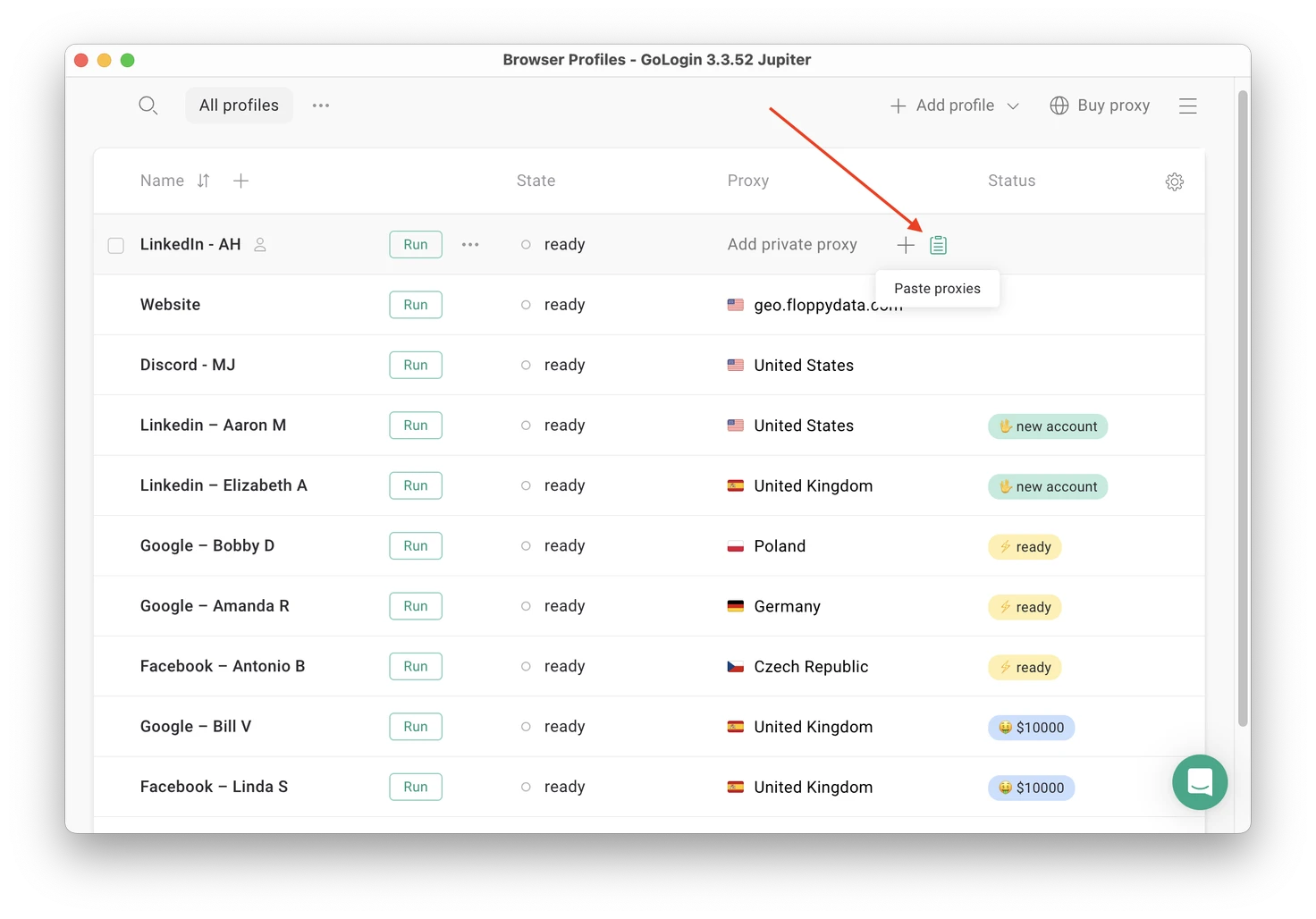
- Copy the proxy details in text format from your account file
- In your GoLogin profile, click Paste Proxy — the IP will paste and verify automatically
- Click the proxy name to select it as the active IP for that profile
Step 4: Run Your Profile and Connect Your LinkedIn Account
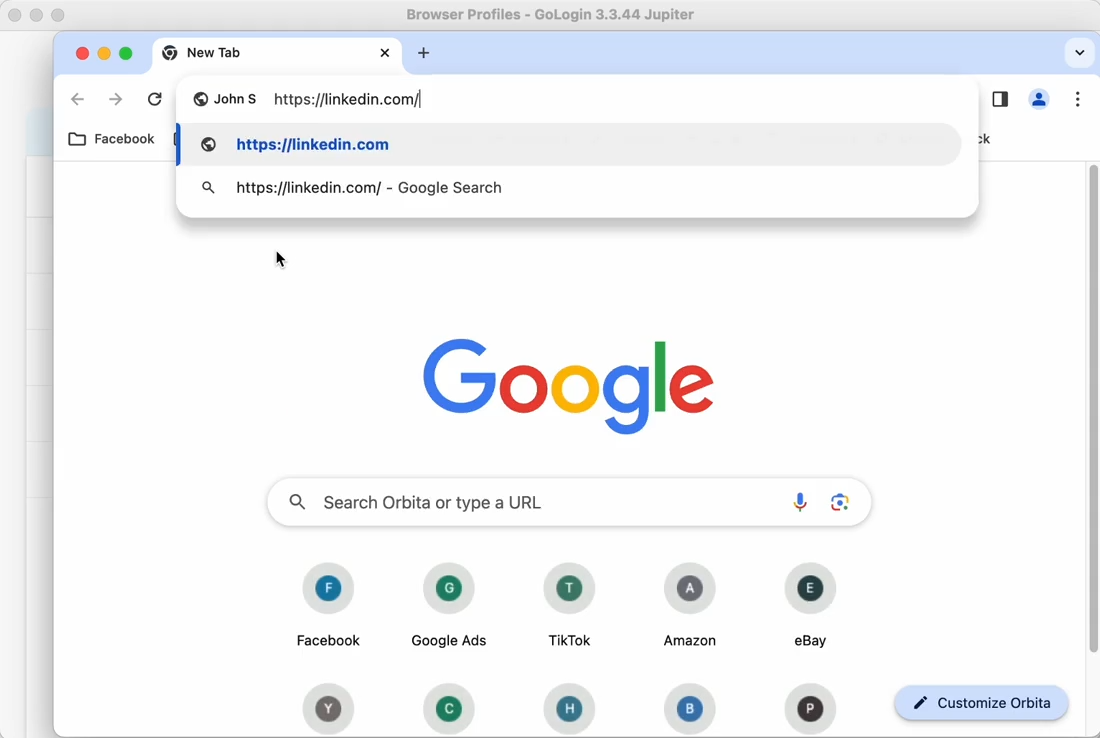
Once your profile is ready, click the Run button next to it. A new browser window will open — it works just like regular Chrome, with tabs, bookmarks, extensions and history — but this session is completely isolated from your device and all other profiles.
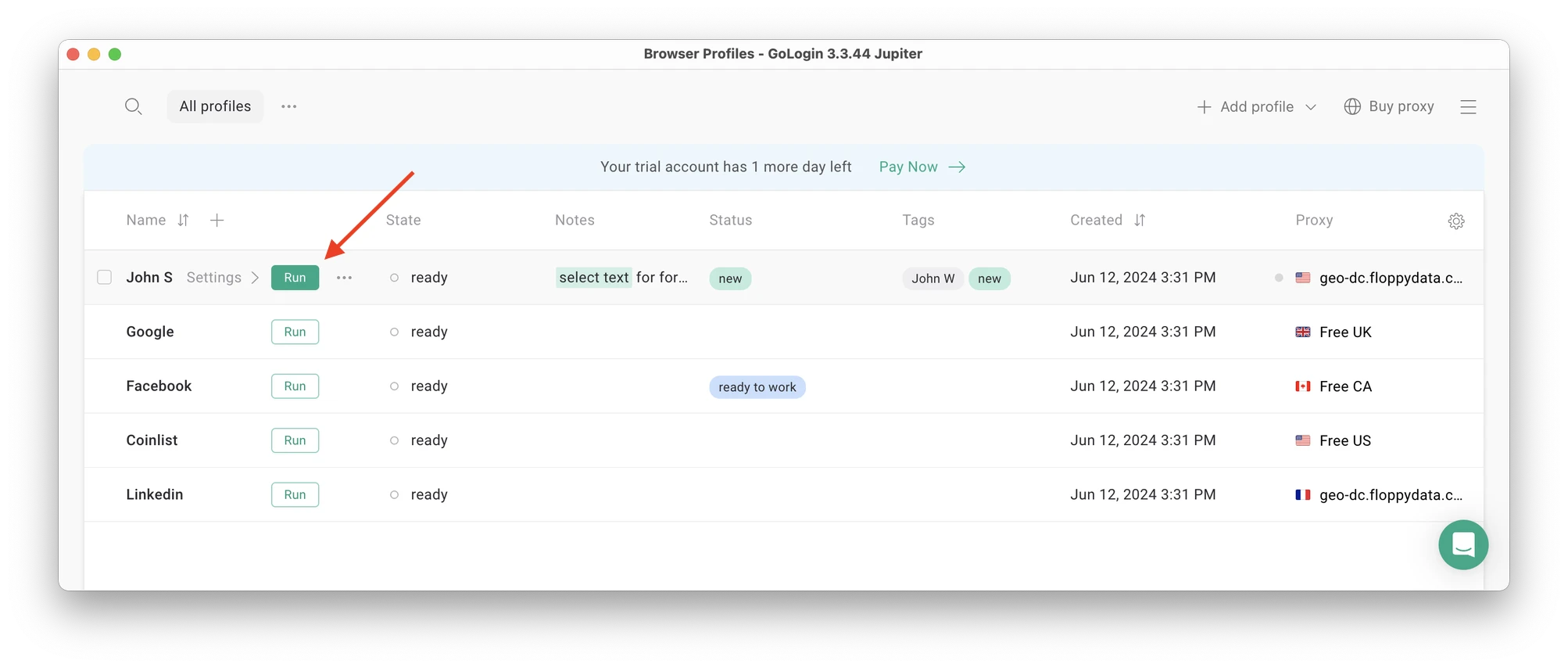
In this new window, simply log into your LinkedIn account as you normally would. From this point on, LinkedIn sees this browser session as a separate, authentic device — and will not flag it for multiple account usage.
After your first login, GoLogin saves your session to a secure cloud server. Next time you open the profile, you won't need to enter your password or 2FA code again — it picks up exactly where you left off.
Step 5: Run Multiple LinkedIn Accounts Simultaneously
To scale to multiple accounts, simply create as many browser profiles as you need — one per LinkedIn account. The key rule: every profile must have a different proxy IP. A simple best practice is to name each proxy after the profile it belongs to, so there's never any confusion.
You can run as many GoLogin profiles simultaneously as your hardware allows — there is no limit on open windows.
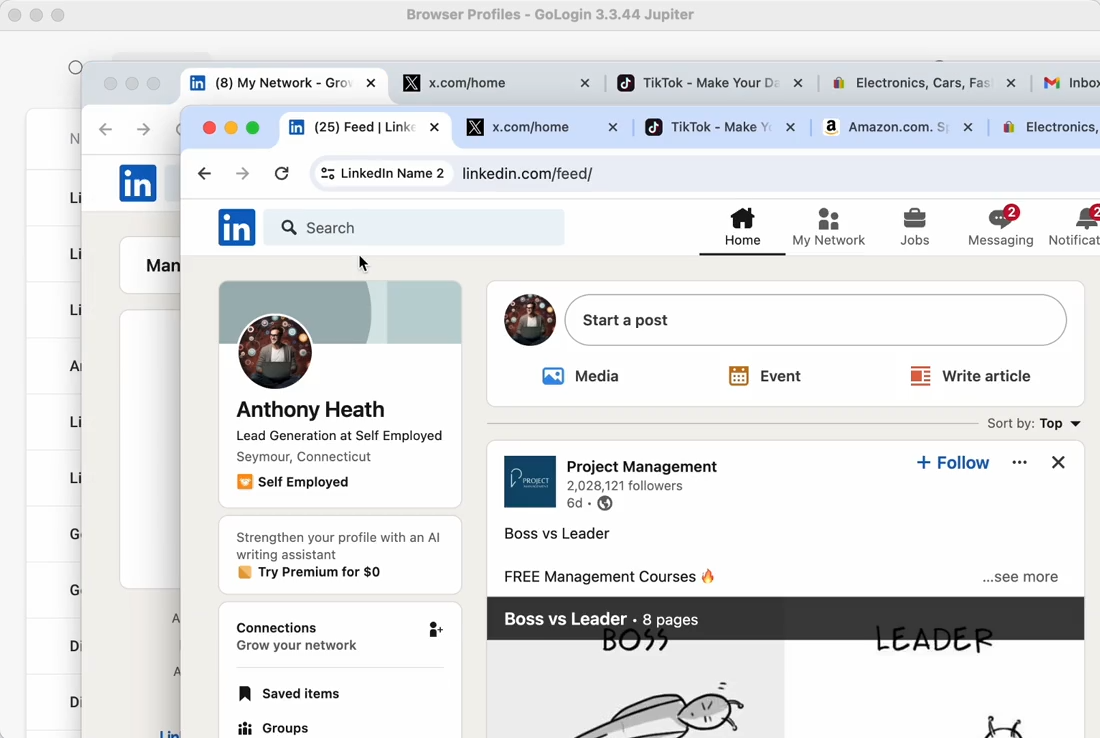
When using a LinkedIn account inside a GoLogin profile, you will never be asked for a password or 2FA code again. The session pauses and resumes from the safe cloud server each time — and to LinkedIn, each profile registers as a separate authentic device, keeping every account fully protected.
Step 6: Check Your Browser Fingerprint Before Going Live
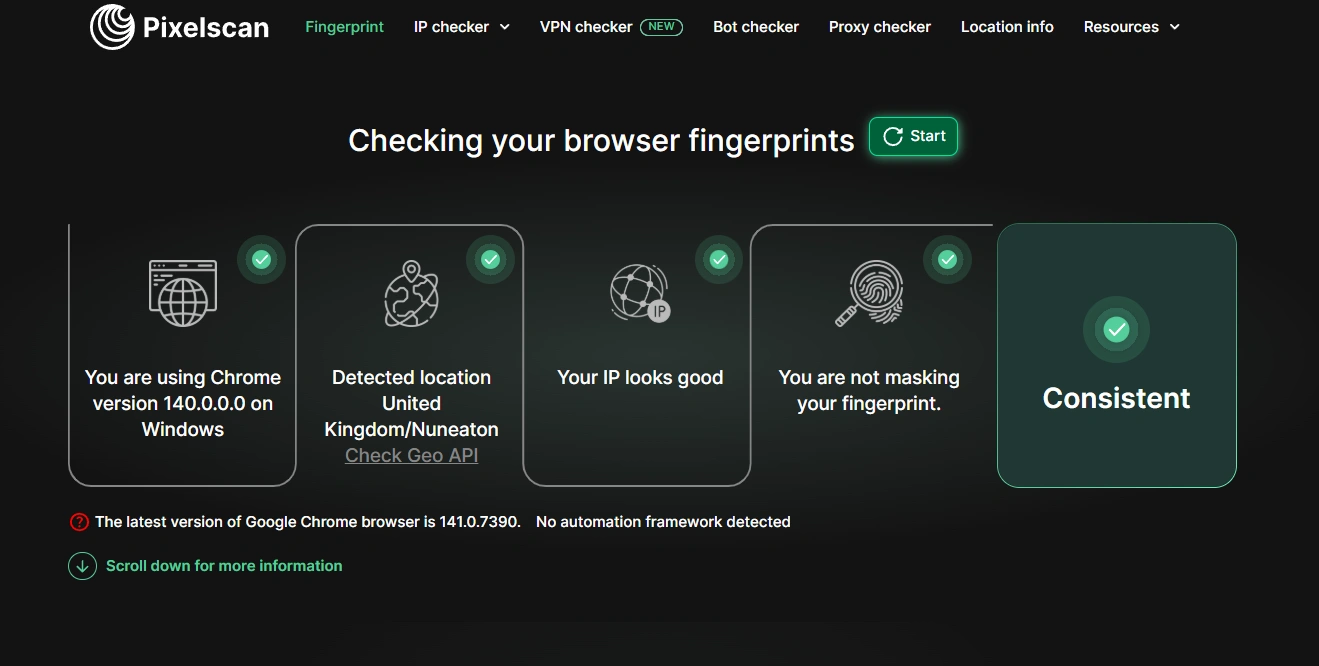
Before running any LinkedIn account at scale, verify that each browser profile has a unique and consistent fingerprint. Use Pixelscan to run a quick check:
- Open Pixelscan and click Start Check
- Review the results — if you see "Inconsistent" or a timezone/IP mismatch, your profile is detectable
- Go back into GoLogin and adjust your proxy or fingerprint settings
- Re-run the scan until everything shows as consistent and unique
Step 7: Stop Profiles Correctly to Preserve Your Sessions
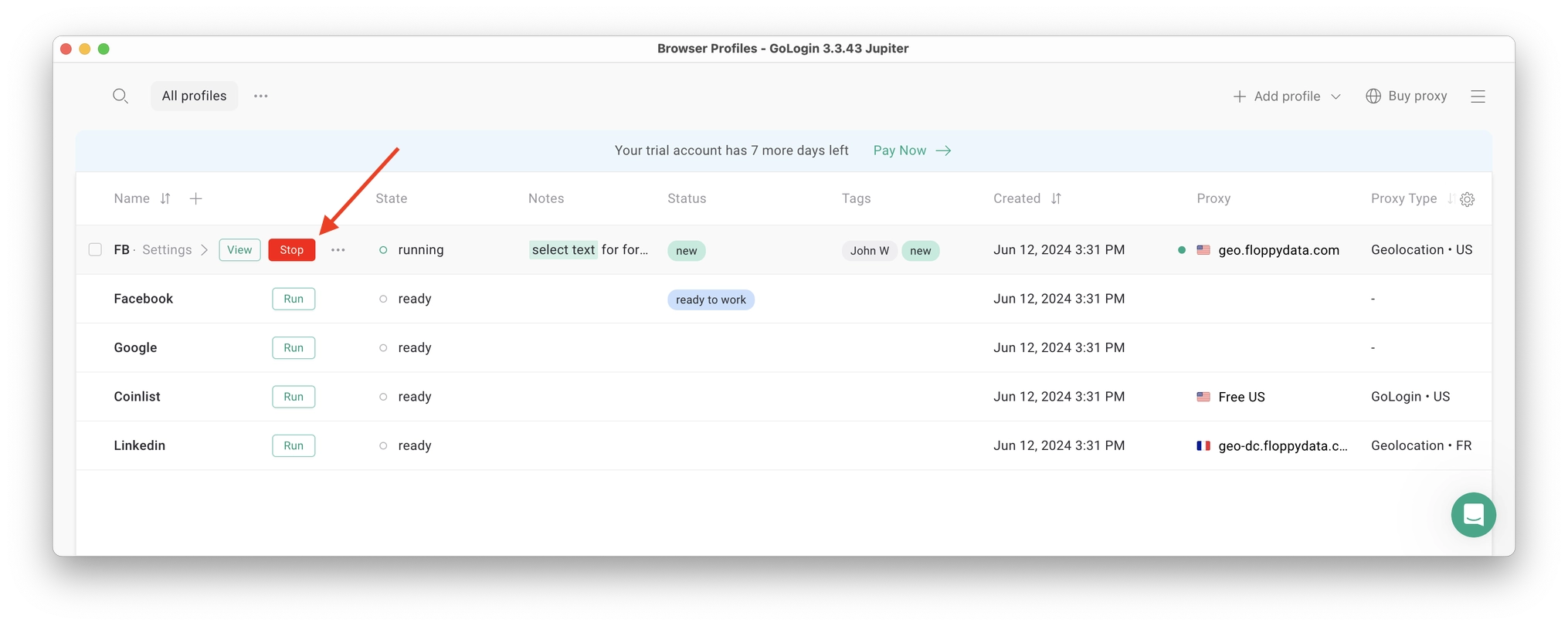
When you're done working, don't just close the browser window. Click the Stop button on your profile inside GoLogin. This closes the browser and uploads your session to GoLogin's secure cloud server.
The next time you need to work, the session will resume exactly where you left off — comfortable, fast, and completely safe.
Conclusion: The Right Setup Eliminates LinkedIn Restrictions
LinkedIn account restrictions are almost always the result of poor technical hygiene — shared IPs, overlapping sessions, inconsistent fingerprints. With GoLogin, every account runs in a fully isolated environment that LinkedIn reads as a separate real device, making detection virtually impossible.
GoLogin offers a free 7-day trial with access to all paid features — no credit card needed. It's the tool used by account vendors themselves to transfer and manage LinkedIn accounts safely, which is the strongest possible signal of its reliability.