How to Manage Multiple LinkedIn Accounts From 1 Device
Want to run several LinkedIn accounts from one computer without bans? Here's a step by step setup with an antidetect browser and one proxy per account.
Whether you're a recruiter juggling client accounts, a marketing agency handling several brand pages, or an entrepreneur running parallel professional identities, managing multiple LinkedIn accounts from a single device is a real challenge. LinkedIn is notoriously strict about detecting multi account usage, and getting flagged can mean permanent bans on all your profiles.
In this step by step guide, you'll learn exactly how to safely run multiple LinkedIn accounts from one computer using Multilogin(an antidetect browser) paired with residential proxies from ProxyEmpire. This combination keeps each account isolated in its own digital environment, so LinkedIn never connects the dots between the
LinkedIn's Terms of Service limit users to one personal account. To enforce this, the platform uses a layered detection system that goes far beyond checking your IP address. It tracks browser fingerprints: a unique combination of data points including your screen resolution, installed fonts, browser version, operating system, WebGL renderer, timezone, language settings, and dozens of other parameters.
When you open two LinkedIn accounts in the same browser, even in separate tabs or incognito windows, these fingerprints are identical. LinkedIn's algorithms can instantly see that both accounts originate from the same machine and flag them for review. Incognito mode doesn't help either, because it only clears cookies; it doesn't change your underlying fingerprint.
This is why you need two things working together: an antidetect browser that creates genuinely separate browser environments, and proxies that assign a unique IP address to each one.
What You'll Need
Before diving into the setup, here's what to have ready:
Multilogin: an antidetect browser that creates isolated browser profiles, each with its own unique fingerprint. It's the industry standard for multi account management.
Residential proxies from ProxyEmpire: real residential IP addresses that rotate or remain sticky, making each of your LinkedIn sessions appear to come from a different household.
Your LinkedIn accounts: already created, ideally each registered with a different email and phone number.
Step 1: Set Up Your Multilogin Account
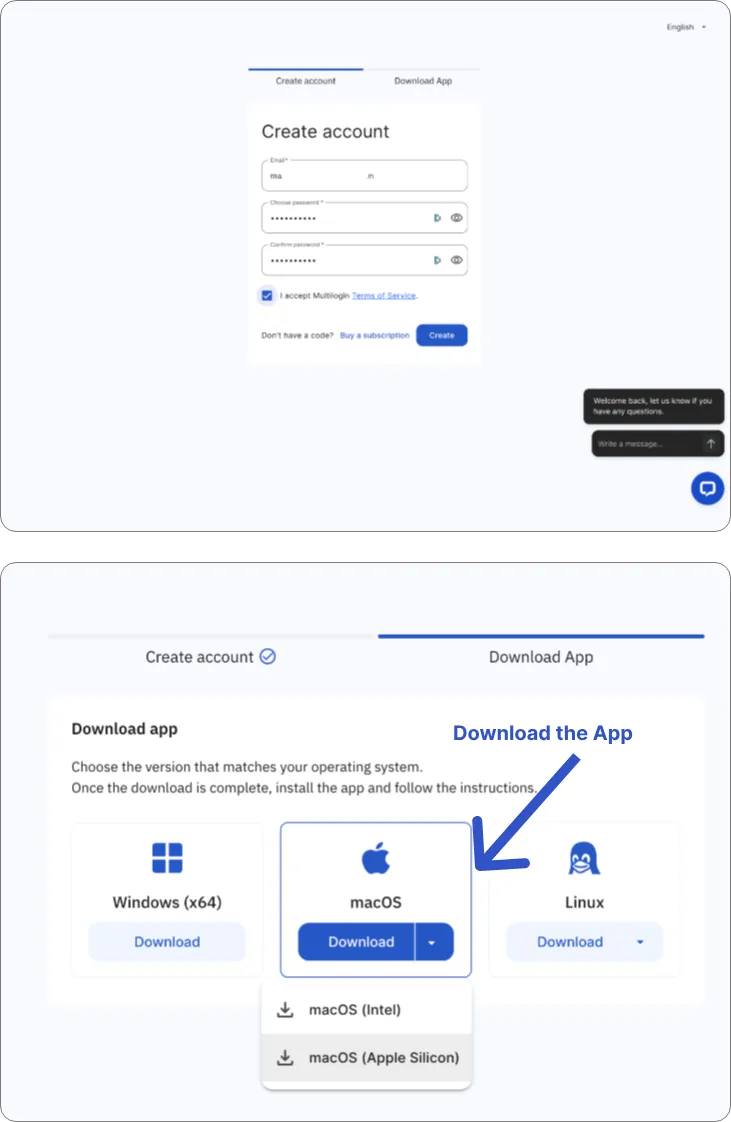
Head to the Multilogin website and sign up for a plan that fits the number of LinkedIn accounts you need to manage. Once you've completed registration, download and install the Multilogin application on your device.
Sign up to Multilogin And Download the App
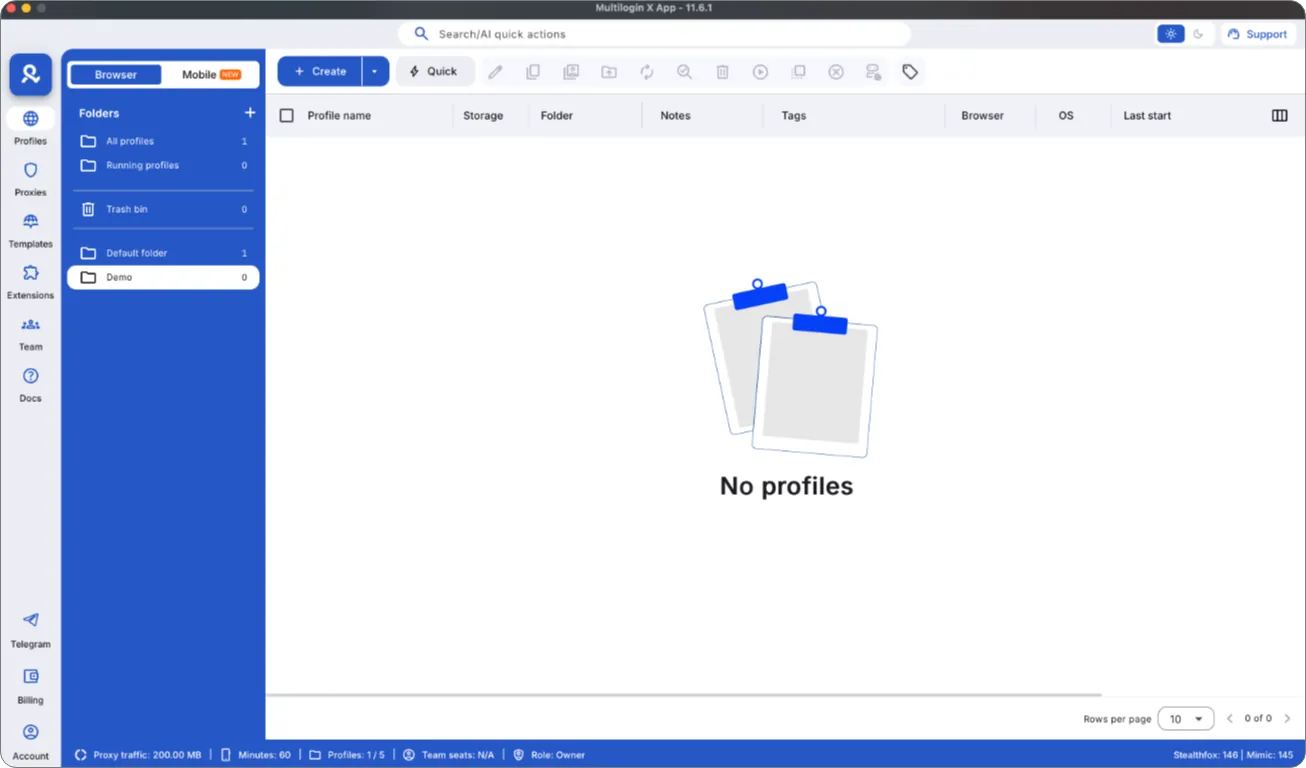
After installation, launch the app and log in with your credentials. You'll land on the main dashboard, which is where you'll create and manage your browser profiles. Each profile acts as a completely separate virtual browser with its own fingerprint, cookies, local storage, and session data.
MultiLogin Dashboard
Take a moment to familiarize yourself with the interface. The key section you'll be working with is the Browser Profiles panel, where each profile represents an independent browsing identity.
Step 2: Get Your Proxies From ProxyEmpire
Before creating your browser profiles, you'll need proxy credentials. Go to ProxyEmpire.io and create an account.
ProxyEmpire offers several proxy types, but for LinkedIn account management, residential proxies are the best choice. Here's why: datacenter proxies come from hosting providers and are easier for LinkedIn to detect and block. Residential proxies route your traffic through real household IP addresses, making your connection appear completely organic.
Once logged in to your ProxyEmpire dashboard:
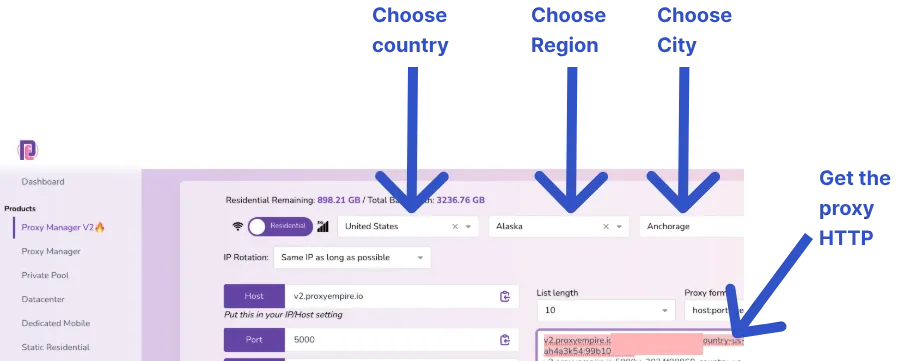
Navigate to the residential proxy section.
Select the country and city that matches the location on each LinkedIn profile. This is important, if your LinkedIn says you're based in Chicago but your IP geolocates to Berlin, that's a red flag.
Choose sticky sessions rather than rotating IPs. LinkedIn expects to see the same IP for the duration of a session, and rapid IP changes look suspicious. ProxyEmpire's sticky sessions let you hold the same residential IP for an extended period (typically up to 30 minutes or longer depending on your plan).
Copy the proxy host, port, username, and password provided in the dashboard. You'll need these for each Multilogin profile
ProxyEmpire dashboard
A good practice is to assign one dedicated proxy location per LinkedIn account and keep it consistent over time. If one account is "based" in New York, always connect it through a New York residential IP.
Step 3: Create a Separate Browser Profile for Each LinkedIn Account
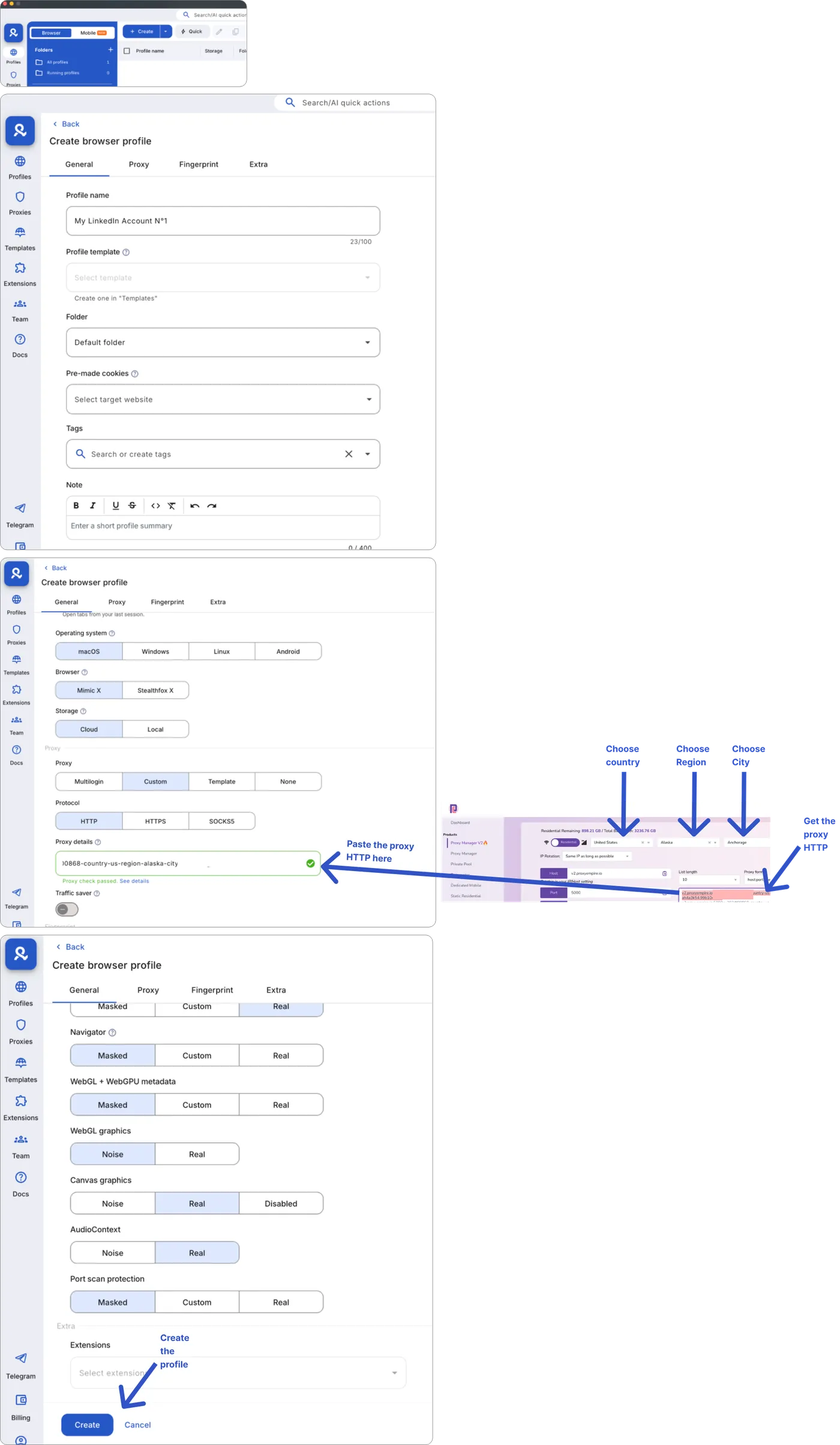
Back in Multilogin, it's time to create your profiles. Click Create Profile and configure the following settings for your first LinkedIn account:
Choose a browser core. Multilogin offers Mimic (based on Chromium) and Stealthfox (based on Firefox). Either works well for LinkedIn. Mimic tends to be the more popular choice since Chrome based fingerprints are the most common on the web, helping you blend in.
Set the operating system. Match it to your actual operating system (Windows, macOS, or Linux). While Multilogin can spoof this, keeping it consistent with your real OS avoids edge case detection issues.
Configure the proxy. This is the critical step. In the proxy settings of the profile:
Set the proxy type to HTTP or SOCKS5 (depending on what ProxyEmpire provides).
Enter the host and port from your ProxyEmpire dashboard.
Enter the username and password for authentication.
Click Check Proxy to verify the connection is working. You should see the IP address and its geographic location displayed.
Adjust the fingerprint. Multilogin automatically generates a unique, realistic fingerprint for each profile: screen resolution, WebGL hash, Canvas fingerprint, audio context, fonts, and more. In most cases, the default randomized fingerprint is perfectly fine. Avoid manually tweaking too many values unless you know what you're doing, as inconsistent combinations can actually make you more detectable.
Name the profile something recognizable, like "LinkedIn, Account 1 (New York)" so you can quickly identify which account goes with which profile.
Save the profile, then repeat this entire process for each additional LinkedIn account, assigning a different ProxyEmpire proxy (from a different location if the accounts are based in different cities) to each one.
Here is the full process with image
Full process to create a custom browser for LinkedIn Accounts with MultiLogin
Step 4: Log Into LinkedIn From Each Profile
Now for the actual login. In your Multilogin dashboard, click Start next to your first browser profile. A new browser window will open: this window is completely isolated from every other profile and from your regular browser.
Launch the browser on MultiLogin
Navigate to LinkedIn.com and log in with the credentials for the account assigned to this profile. Complete any two factor authentication prompts as needed.
Once logged in, close the profile when you're done by clicking Stop in Multilogin. This saves all cookies and session data, so the next time you start this profile, you'll still be logged in without needing to reenter your credentials.
Repeat for each profile. The key rule: never log into more than one LinkedIn account in the same browser profile.One Browser profile, one account, always.
You're done, congrats. You can now manage many LinkedIn Accounts
Need more accounts to run this way? You can buy LinkedIn accounts from us, verified and ready to log in.
Step 5: Maintain Consistent Behavior Across Accounts
Having the right technical setup is only half the battle. LinkedIn also uses behavioral analysis to detect suspicious activity. Here are practices that will keep your accounts safe long term:
01
Warm up new accounts gradually
Don't create a fresh LinkedIn account and immediately send 50 connection requests. Start slow: complete the profile, add a photo, post a status update, and send just a few connection requests per day for the first couple of weeks. Gradually increase activity as the account ages.
02
Keep session times realistic
Don't run all your accounts simultaneously for hours on end. A real person logs in, does some work, and logs out. Mimic that pattern. Stagger your sessions: spend 20 to 40 minutes on one account, stop it, then open another.
03
Don't copy paste identical content
If you're posting across multiple accounts, rewrite the content for each one. Duplicate posts from accounts sharing similar connection networks is a detection signal that LinkedIn's algorithm can easily pick up.
04
Use the same proxy consistently
Always start the same profile with the same proxy location. If LinkedIn sees your "New York to based" account suddenly connecting from London and then back to New York the next day, that inconsistency can trigger a review.
05
Avoid automation tools on top of this setup
While it can be tempting to layer LinkedIn automation bots on top of Multilogin profiles, this dramatically increases your risk. If you do use automation, keep the activity volume extremely conservative.
Why Multilogin and ProxyEmpire Work Well Together
The reason this specific combination is effective comes down to how detection works. LinkedIn (and most major platforms) check two things: who you are digitally (your browser fingerprint) and where you are on the internet (your IP address).
Multilogin handles the first part by making each browser session look like a completely different device. ProxyEmpire handles the second by routing each session through a unique residential IP address that looks like a normal home internet connection.
ProxyEmpire is particularly well suited for this use case because of its large pool of ethically sourced residential IPs with granular geo targeting. You can select proxies down to the city level, which matters when you need your IP location to match the location listed on a LinkedIn profile. Their sticky session feature is also essential, LinkedIn doesn't expect to see a user's IP address change every few minutes, and ProxyEmpire lets you hold the same IP for the duration of your session.
Multilogin, on the other hand, is the most established antidetect browser on the market. Its fingerprint generation is sophisticated enough to pass the checks run by platforms like LinkedIn, and its profile isolation ensures zero data leakage between accounts.
Common Mistakes to Avoid
Even with the right tools, small oversights can compromise your accounts. Watch out for these:
01
Using free or public proxies
These IPs are shared by thousands of users, many of whom are doing exactly what you're doing, or worse. They're frequently blacklisted by LinkedIn.
✅Always use premium residential proxies from a reputable provider like ProxyEmpire.
02
Running profiles without a proxy
If you forget to assign a proxy to a profile, it will use your real IP address. If two profiles share your real IP, LinkedIn can link the accounts.
✅Always assign a dedicated proxy to every single browser profile before launching it.
03
Logging into the wrong account in the wrong profile
This defeats the entire purpose of browser isolation. If Account A logs into Profile B, the fingerprints get cross contaminated.
✅Always double check which profile you're launching before entering credentials.
04
Ignoring timezone and language settings
If your proxy IP is in Germany but your browser language is set to English (US) and your timezone is EST, that's a mismatch LinkedIn can detect.
✅Multilogin lets you configure timezone and language per profile. Make sure they align with the proxy location.
05
Neglecting profile maintenance
Browser fingerprints can become outdated over time. If your fingerprint data is stale, detection systems can flag it as suspicious.
✅Multilogin periodically updates its fingerprint database. Keep the application updated to ensure your profiles remain undetectable.
Frequently Asked Questions
Is managing multiple LinkedIn accounts legal?
It violates LinkedIn's Terms of Service, which limits users to one personal account. However, many agencies and recruiters operate multiple accounts as a business necessity. The risk is account suspension, not legal action. Use this information to make your own informed decision.
How many LinkedIn accounts can I manage this way?
There's no hard technical limit: it depends on your Multilogin plan (which determines how many profiles you can create) and how many proxies you purchase from ProxyEmpire. Managing 5 to 10 accounts is common; some agencies manage 50 or more.
Can I use this on Mac and Windows?
Yes. Multilogin supports both macOS and Windows. ProxyEmpire's proxies are platform agnostic since they're configured within the browser profile.
What happens if one account gets banned?
If you've set everything up correctly with isolated profiles and separate proxies, a ban on one account should not affect the others. That's the entire point of this setup, complete isolation between accounts.
Do I need a separate email for each LinkedIn account?
Yes. Each LinkedIn account should be registered with a unique email address and, ideally, a unique phone number for verification.
Final Thoughts
Managing multiple LinkedIn accounts from a single device is entirely doable when you have the right infrastructure in place. The combination of Multilogin for browser fingerprint isolation and ProxyEmpire for clean, geo targeted residential IPs creates an environment where each account operates as if it's on its own separate device in its own separate location.
The setup takes about 30 minutes for your first profile and gets faster from there. Once configured, maintaining the accounts is just a matter of following consistent, human like usage patterns and keeping your tools updated.
Take the time to set it up properly from the start, and you'll avoid the headaches of account bans and the hassle of constantly rebuilding profiles from scratch.
Skip the rent and own your LinkedIn account
Verified, 200+ real connections and edited to your brief. One payment from $309, yours to keep.