Let's talk about the age old debate for anyone posting on LinkedIn: where on earth do you put the link? It seems simple, but how you handle this can make or break your post's reach.
Post Body vs. First Comment: Where to Place Your Link
You’ve probably seen posts with a little note at the bottom saying, "link in the comments." There’s a very good reason for this. In my experience, and what the data consistently shows, is that placing your link in the first comment is almost always the superior strategy.
Think about it from LinkedIn's perspective. Their goal is to keep you scrolling on their platform, not to send you away to another website. When you put an external link directly in the body of your post, LinkedIn's algorithm often flags it and throttles its reach. It’s a subtle penalty, but it can significantly limit how many people see your content.
By posting the link in the comments, you play by the algorithm's unwritten rules. Your main post (the text, image, or video) gets judged on its own merit and has a much better shot at earning that valuable organic reach. Once someone is engaged, they can easily find the link you’ve promised.
Pro Tip: The "link in comments" approach works. We've seen posts get up to a 30% boost in visibility compared to those with a link directly in the caption. Conversely, adding a link to the post body can slash your organic reach by a similar margin.
Just be sure to guide your readers. A simple "Check the comments for the full article!" or "I dropped the link in the first comment" is all it takes. This small tweak has become standard practice for a reason: it delivers results. You can read more about the data behind LinkedIn link performance and see why this strategy is so effective.
To make the choice even clearer, let's break down the two main strategies.
Link Placement Strategy Comparison
| Method | Impact on Reach | Best For | Recommendation |
|---|---|---|---|
| Link in Post Body | Often reduced by the algorithm | Company page announcements or when the link preview is essential to the post's context. | Use sparingly. Best reserved for when you're willing to sacrifice some organic reach for immediate click through convenience. |
| Link in First Comment | Generally higher organic reach | Driving traffic to articles, webinars, or resources without sacrificing post visibility. | The go to method for most content. It satisfies the algorithm and gets your content seen by a wider audience. |
Ultimately, the "link in comments" strategy is the recommended approach for maximizing engagement and reach on your personal profile or company page posts. It’s a small adjustment that can lead to a big difference in your content's performance.
Mastering the 'Link in the First Comment' Technique
So, you've heard about the infamous "link in the first comment" strategy. It’s a classic for a reason. The entire point is to let your post get maximum reach on its own merit before you ask your audience to click away from LinkedIn.
Think of it as a two part play.
First, you set the stage with a fantastic post. This could be a compelling story, a valuable tip, or an eye catching video or image. The post needs to stand on its own without the link. To guide your audience, you just need to add a simple signpost at the end. Something like "I'll drop the guide in the comments below" or "Full article in the first comment" works perfectly.
Once you hit "Post," the second act begins immediately. Jump right into the comments section of your own post and be the very first one to comment. This is where your link lives. By doing this, you keep the main post clean and avoid triggering the algorithm to potentially limit your reach right out of the gate.
How to Write a Comment That Gets Clicks
Don't just drop a naked URL and run. That's a missed opportunity. Your comment is another chance to sell the click and add context.
Instead of just pasting the link, try something more engaging: "Here’s the full guide I mentioned in the post! The section on cold outreach templates is the exact framework we use with our clients." See the difference? You’re reinforcing the value.
A great first comment does more than just hold the link; it becomes its own little engine for engagement. When people like and reply to your comment, it sends even more positive signals to the LinkedIn algorithm, further boosting your post's visibility.
This flowchart breaks down exactly why this strategy is so effective compared to placing a link directly in your post.
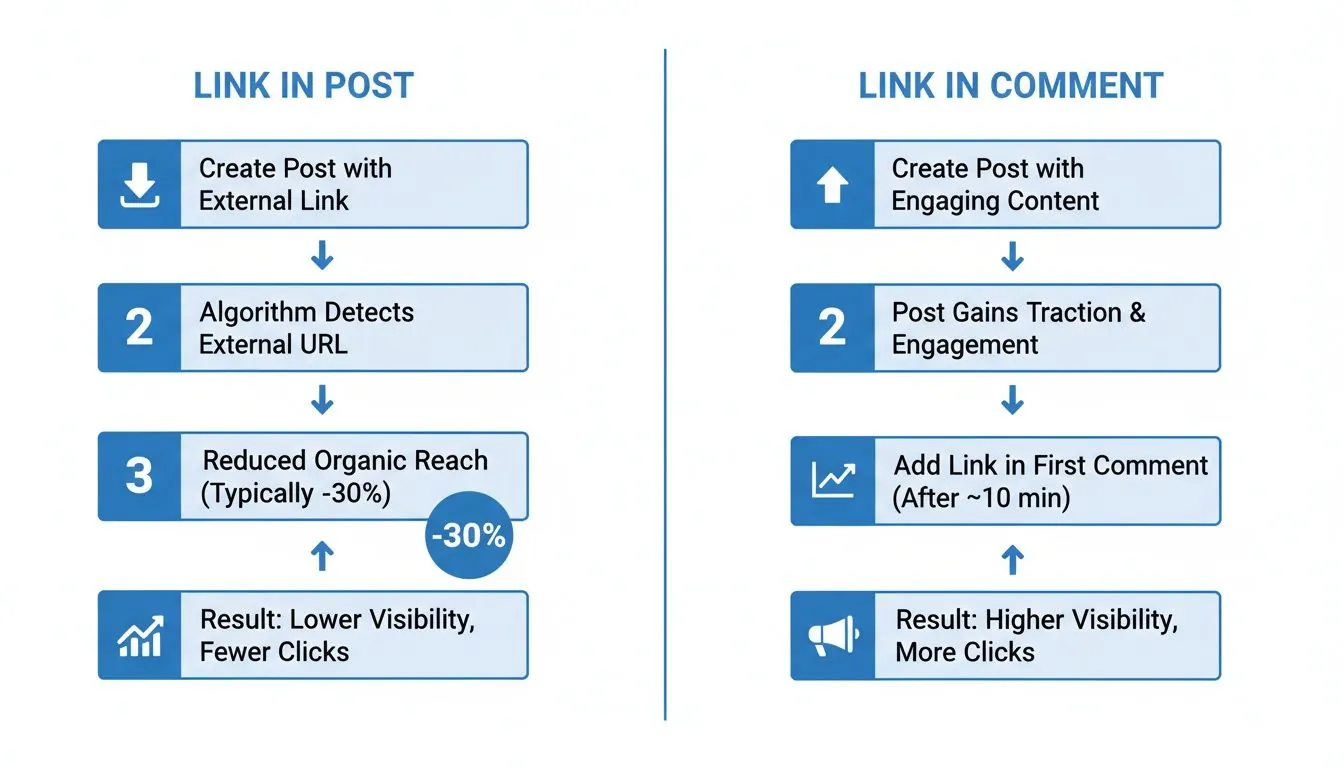
As you can see, keeping that external link out of the main body of your post is a smart way to work with the platform, not against it. It's a simple tweak that can lead to much wider distribution and better performance for your content. In fact, this is just one of the ways that you'll see how commenting on LinkedIn boosts visibility across the board.
Advanced Tactics for Driving More Link Clicks
Okay, so you’ve gotten the hang of the first comment strategy. Now, let's talk about making those clicks truly count. It's time to move beyond just sharing links and start strategically driving traffic you can actually measure.
This is where UTM parameters come into play. Think of them as little tracking codes you add to your URL. Without them, your analytics tools (like Google Analytics) just show a big, generic blob of traffic from "LinkedIn." But with UTMs, you can see exactly which post drove which clicks. You can finally answer questions like, "Did my new product announcement or that case study I shared generate more leads?"
Crafting a Compelling Call to Action
Your Call to Action (CTA) is what convinces someone to leave the LinkedIn feed and visit your link. A lazy "click here" just doesn't cut it. You need to give them a real reason to act.
The most effective CTAs are specific and benefit driven. They tell the reader exactly what they will get and why it’s worth their time to leave LinkedIn to get it.
Let's look at some real world examples. Instead of a generic prompt, try framing the click as the next logical step to getting more value.
- For a guide: "Want the full 5 step framework? I've put the complete guide in the comments for you."
- For a webinar: "Registration is free but limited. Grab your spot using the link in the comments before it's full."
- For an article: "The most surprising data point is in section three. See if you agree, link in the comments."
Notice how each one creates a little bit of curiosity or urgency? This approach also helps you understand which post formats are pulling the highest numbers, affecting everything down to /blog/what-is-an-impression-on-linkedin for your content.
Of course, a great CTA needs eyeballs to be effective. This is why knowing the best time to post on LinkedIn is so important. When you combine a strong CTA with optimal timing, you're giving your content its best shot.
One final tip: if your URL is long and clunky with all those UTM codes, clean it up with a link shortener like Bitly. A clean link in the comments just looks more professional.
More Places to Share Your Links on LinkedIn
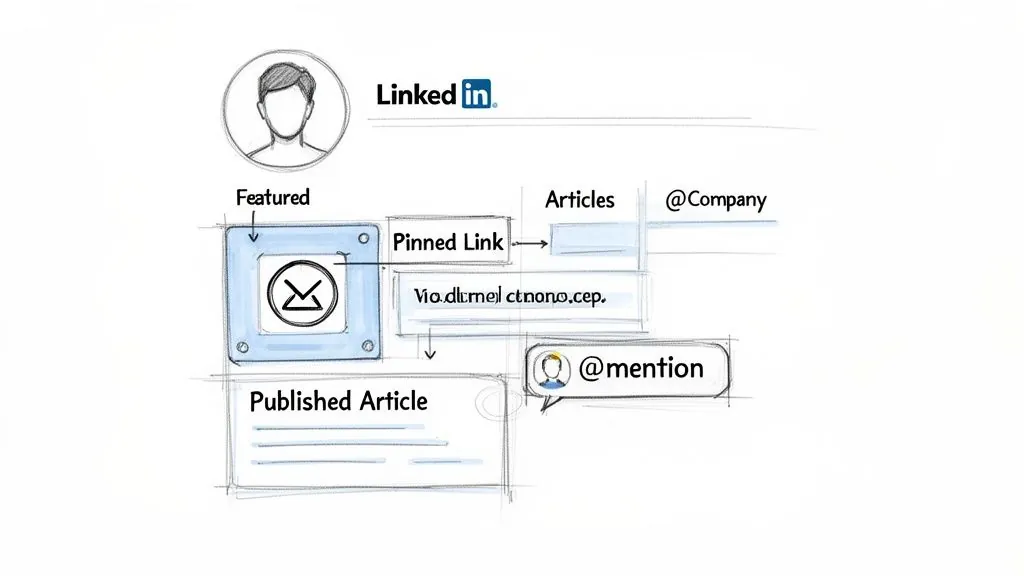
While the post and comment strategy is great for daily engagement, it's not the only game in town. Your LinkedIn profile has some powerful, often overlooked real estate for placing important links. Think of these as your "evergreen" spots: they provide long term visibility for your best resources, driving traffic long after a post vanishes from the feed.
One of the best examples is your profile's Featured section. I like to think of this as a personal billboard. It sits right at the top of your profile, giving you a permanent showcase for links to your portfolio, a killer blog post, your company website, or even a lead magnet. It’s the perfect way to make sure your most important call to action is always front and center for anyone who lands on your page.
Go Deeper with LinkedIn Articles
When you have more to say than a post allows, LinkedIn Articles are your best bet. They are essentially blog posts hosted directly on the platform, giving you a full canvas for long form content, multiple images, and, crucially, as many links as you need without worrying about the algorithm dinging your reach.
This format works exceptionally well for:
- Case Studies: Walk readers through a client's success story, with links to the final project.
- In Depth Guides: Create a comprehensive resource and link out to the tools or references you mention.
- Thought Leadership: Share your unique perspective on an industry topic and link to the data that backs it up.
What's more, LinkedIn Articles are indexable by search engines. This means your content can start attracting traffic from Google, not just from within LinkedIn. If you're looking for a richer way to share content, it's worth learning how to post an article on LinkedIn. The same strategic thinking applies when you need to figure out how to add a hyperlink in a LinkedIn message, as both benefit from placing links in a natural, value driven context.
Get More Eyes on Your Content with Mentions
Here's another smart tactic: use clickable @-mentions to tag relevant companies or people in your posts. When you type the "@" symbol followed by a name, their profile becomes a live link right in your text.
This simple action does two things. First, it notifies them of the mention, which dramatically increases the chances they'll engage with or even share your content. Second, it creates a new path for their audience to discover your post. It's a simple, effective way to expand your reach.
Tagging profiles isn't just a courtesy; it delivers real results. Some data shows that tagged posts see 15 to 25% higher interaction rates than untagged ones. That notification creates a secondary distribution channel that gets your content in front of a whole new network.
We’ve all been there. You paste a link into a LinkedIn post, ready to share your latest article or project, and the preview that appears is… a total mess. Maybe it’s a random image from the website's footer, a missing headline, or worse, just a blank box.
Nothing undermines your credibility faster than a broken link preview. It just looks sloppy.
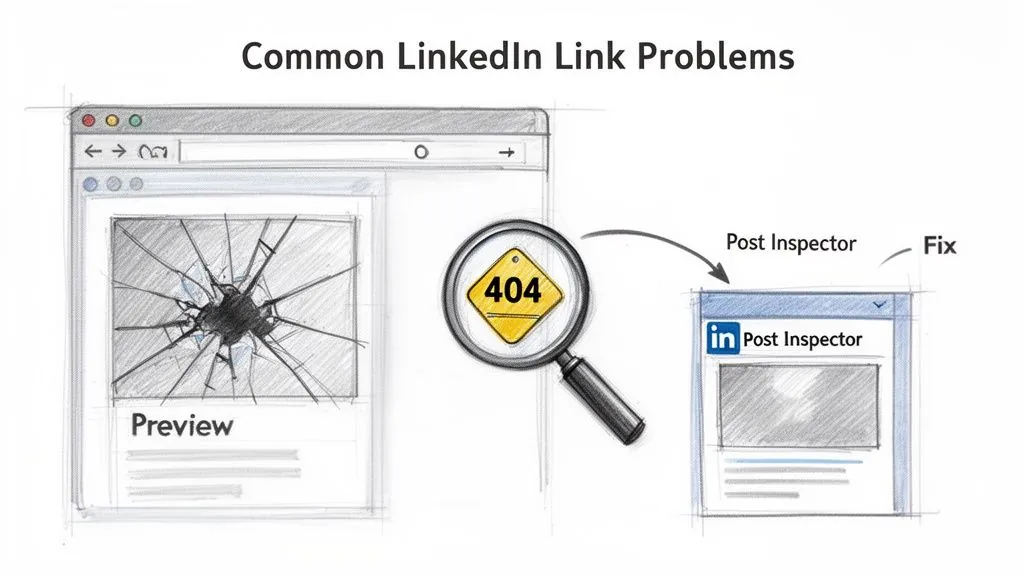
Most of the time, the culprit is the website’s Open Graph (OG) metadata. Think of OG tags as little instructions on your webpage that tell social media platforms like LinkedIn which title, description, and image to use for a link preview. If those instructions are missing or wrong, LinkedIn has to guess, and it often guesses poorly.
Using the LinkedIn Post Inspector
Thankfully, you don't have to guess what's wrong. LinkedIn has a fantastic, free tool for this exact problem: the Post Inspector. This should be your first port of call for any preview related headache.
Just grab the URL you want to share and pop it into the inspector. The tool analyzes the page and shows you precisely what LinkedIn sees, flagging any missing OG tags or errors.
Once you or your developer have fixed the metadata on the website, paste the URL back into the Post Inspector. This forces LinkedIn to clear its cache and pull the fresh, correct information for your preview. It's a simple step that ensures your link looks sharp and professional every single time.
Key Takeaway: Always check your link preview before you hit "Post." If it looks off, don't just post it anyway. Use the Post Inspector to diagnose the issue at the source. A clean preview shows you pay attention to the details.
Common LinkedIn Link Problems and Solutions
Sometimes the issue isn't a bad preview, but something else entirely. Here’s a quick rundown of common link problems I've seen over the years and how to fix them fast.
| Problem | Likely Cause | Solution |
|---|---|---|
| No Preview Appears | The website may be blocking LinkedIn's web crawler, or there are critical metadata errors. | If you can't fix the website, remove the preview by clicking the "X" on the card and write a strong post to entice clicks. |
| "404 Not Found" Error | The URL likely has a typo or the page was moved or deleted. | Carefully double check your URL for any mistakes. A single wrong character is all it takes. |
| "Link May Be Unsafe" Warning | The link might be using a suspicious URL shortener, have aggressive redirects, or the site may have been flagged for malware. | Immediately investigate your website. If it's clean, request a review from LinkedIn to get the flag removed. |
| Old Image/Title Shows Up | LinkedIn has an old version of the page cached. | Run the URL through the Post Inspector to force a cache refresh and pull the updated metadata. |
Fixing these issues as they pop up is crucial. A "link unsafe" warning, even if it's a false positive, can seriously damage your professional reputation among your connections. Taking a minute to troubleshoot is always worth the effort.
Your Top LinkedIn Link Questions, Answered
When it comes to posting links on LinkedIn, a few common questions always seem to pop up. Getting the hang of these nuances can make a huge difference in your strategy, so let's clear them up.
Is Putting the Link in the First Comment Still a Good Idea?
This is the big one, isn't it? For years, the "link in the comments" method has been the go to for maximizing reach. The short answer is yes, it's still a very effective strategy.
LinkedIn’s algorithm wants to keep people on the platform, so posts without external links in the main body tend to get more love and visibility. While the algorithm isn't quite as harsh as it used to be, you'll still generally see better organic reach by keeping the link out of the initial post.
The real magic of the "link in comments" strategy isn't about tricking an algorithm. It's about earning your audience's attention with great content first, then giving the most engaged readers a clear next step.
If a link preview is absolutely essential for your post's context, go ahead and put it in the body. Just be aware that you might be sacrificing some reach for that convenience.
What's the Best Way to Handle Multiple Links in One Post?
It’s tempting to share all your great resources at once, but be careful. Throwing multiple links at your audience often leads to decision fatigue, and they end up clicking nothing at all.
If you absolutely must share several links, a better approach is to bundle them. Instead of cluttering your post, try one of these methods:
- Create a Resource Hub: Funnel all your links into a single blog post or a dedicated landing page on your website. Then, you only have to share that one URL.
- Use a Link in Bio Tool: These tools give you a single, custom landing page to house all your important links. Directing people to a "link in bio" or a link in your Featured section is a clean and common practice.
This keeps your post focused and gives your readers one clear, simple destination.
Can I Fix a Broken or Wrong Link After I've Published?
We’ve all been there: you hit "Post" and immediately spot a typo in the URL. Don't panic! You can absolutely fix it.
Just find your post, click the three dots (...) in the top right corner, and choose "Edit post." You can then delete the old, incorrect link and paste in the right one. As soon as you hit save, the new link will be live.
Ready to stop just sharing links and start building relationships? PowerIn automates high quality comments on LinkedIn to help you engage with prospects and generate leads around the clock. Start your free 5 day trial and get 500 prospects on us.