Thinking about canceling your LinkedIn Sales Navigator subscription? If you're on the fence, you’re not alone. Many sales pros and founders get to a point where they question if the hefty price tag is really worth it.
Sales Navigator is, without a doubt, a powerful tool for B2B prospecting. But power comes at a cost, often starting at $99.99 per month for the Core plan. The real question isn't whether the tool can work, but whether it's working for you and delivering a solid return on that investment.
If the answer is "no," or even a hesitant "maybe," then it's time for a strategic conversation. This isn't about giving up on finding new leads; it's about getting smarter with your budget and exploring more efficient ways to fill your pipeline.
Evaluating the Real Cost and Return
Let's be honest, for most people, the decision boils down to the price. It's a significant monthly expense, and if it’s not directly translating into closed deals, it feels more like a leak in your budget than a growth engine.
The data backs this up. We're seeing a clear trend where 28% of B2B teams pull the plug on Sales Navigator within the first six months. The top reasons? High costs and a disappointing ROI. It's a common story: the initial excitement fades when the tool doesn't magically fill the sales pipeline enough to justify the expense. It becomes a luxury item, not a mission critical tool.
Before you make the final call, it helps to map out your own situation. This simple decision tree can bring a lot of clarity.
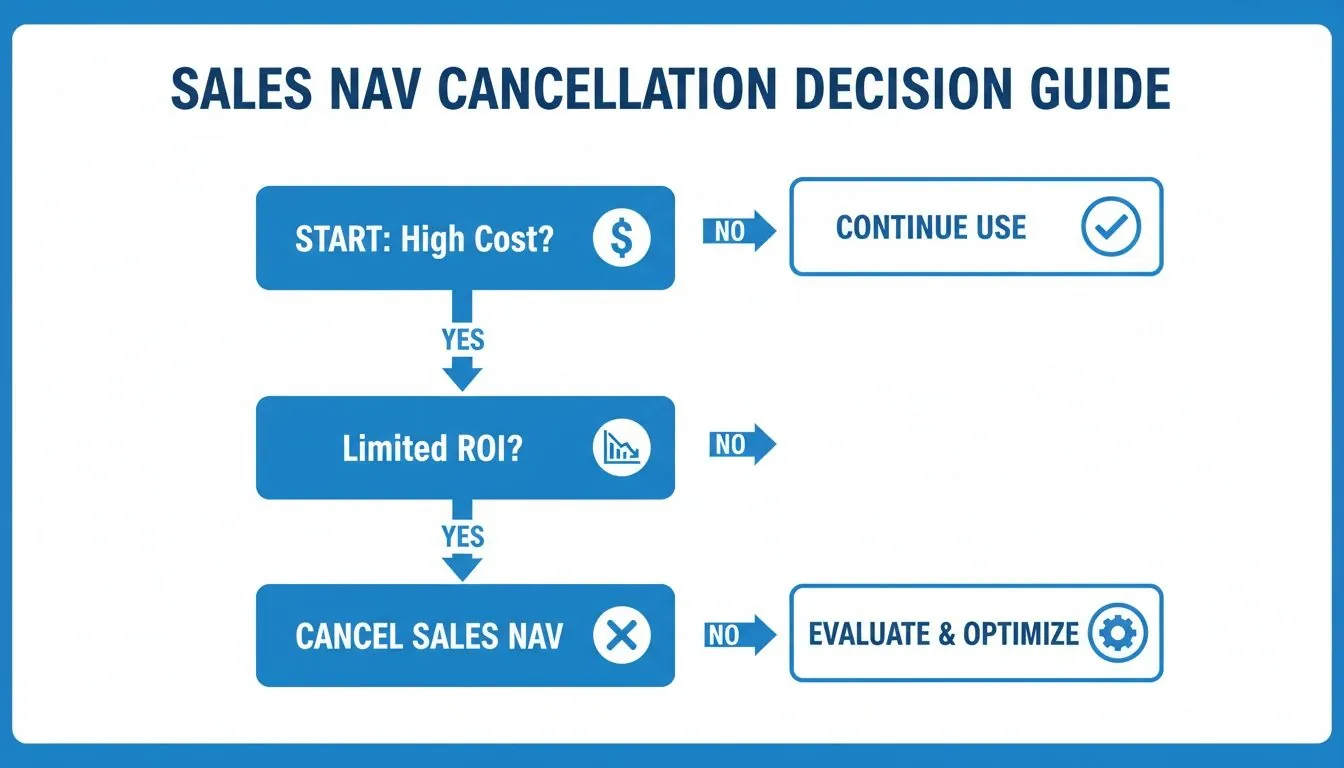
As you can see, the path becomes pretty clear. If the cost is a major concern and the return just isn't there, cancellation is the most logical step forward.
Making the Right Choice for Your Sales Strategy
At the end of the day, it's a strategic choice. Does Sales Navigator save you a ton of time? Is it consistently surfacing high quality leads that actually convert? If your answer is a lukewarm "sometimes," it’s probably time to look at other options.
I've seen teams and solo founders thrive after canceling, and it usually comes down to a few common scenarios:
- You're running a lean operation. For startups and solopreneurs, that monthly fee is a serious expense that could be funneled into marketing, product development, or other growth areas.
- Your team isn't using it. Are your reps fully bought in and trained? If not, you're paying for shelfware, a powerful tool that's just collecting dust.
- You've found a better workflow. Modern automation tools can often handle the core tasks of lead generation for a fraction of the price, and with far less manual grunt work.
The goal isn't just to slash a subscription from your budget. It's to reinvest your time and money into a strategy that actually moves the needle. Canceling Sales Navigator can be the first step toward building a more efficient, automated, and ultimately more profitable lead generation machine.
If you're still weighing your options, getting clear on what each LinkedIn plan offers is a great next step. You might find our deep dive into the different LinkedIn plan types, Premium vs. Sales Navigator vs. Free, helpful. It can give you the confidence to know you're making the right move for your specific needs.
Your Practical Guide to Canceling an Individual Subscription
So, you've decided Sales Navigator Core isn't the right fit for you anymore. It happens. Maybe you're tightening the budget, your sales strategy has evolved, or you just aren't seeing the ROI you hoped for. Whatever the reason, canceling your individual plan can feel like navigating a maze, but it's pretty simple once you know where to look.
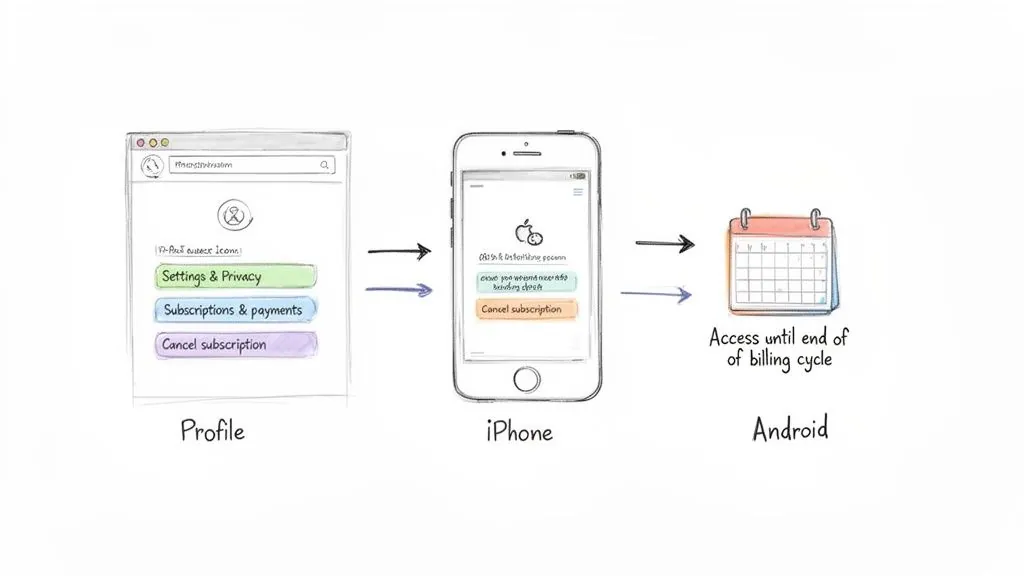
One thing to get out of the way first: don't worry about losing access the second you hit "cancel." LinkedIn lets you use all the premium features right up until your current billing cycle ends. There's no need to wait until the last day. If you cancel with two weeks left, you get those two weeks to send your final InMails and, more importantly, export any lead lists or data you need.
Canceling Directly on the LinkedIn Website
Most people sign up for Sales Navigator on their desktop, and if that’s you, this is the most direct way to cancel. LinkedIn bundles all its subscription management in one place, which is handy.
You’ll start by heading to your LinkedIn homepage. From there, click your profile picture, find 'Settings & Privacy,' and then look for 'Subscriptions & payments' in your account preferences. This is where you can manage your premium account and start the cancellation. You can find more detailed visual guides on this process, which hasn't changed much over the years, from experts at Kaspr.io.
Be ready for a little sales pitch on your way out. LinkedIn will almost certainly pop up a retention offer, like a discount, to try and keep you. If you're set on leaving, just click past it and confirm your cancellation.
How to Handle Subscriptions Billed Through App Stores
What if you signed up on your phone? This is a common trip up. If you subscribed through your iPhone's App Store or the Google Play Store, you have to cancel it there, not on LinkedIn.
This is a critical point. Trying to cancel from inside the LinkedIn app or website will get you nowhere if your payments are being handled by Apple or Google. You have to go to the source.
For Apple (iOS) Users: Grab your iPhone and open the Settings app. Tap your name/Apple ID at the very top, then go into Subscriptions. You'll see LinkedIn Sales Navigator in your list of active subscriptions. Just tap it and choose to cancel.
For Android (Google Play) Users: The steps are very similar. Open the Google Play Store app, tap your profile icon, and go to Payments & subscriptions > Subscriptions. Find Sales Navigator in the list and you can cancel it right there.
The image above shows the LinkedIn app's home on the Google Play Store. It’s a good visual reminder that for mobile billing, the store is in charge, not LinkedIn.
Key Takeaway: If you subscribed on a mobile device, you must cancel through that device's app store settings. You won't find a cancellation option on LinkedIn's site or in its app for these subscriptions.
Forgetting this is probably the #1 reason people get frustrated trying to figure out how to cancel LinkedIn Sales Navigator. They search endlessly in the LinkedIn settings, completely unaware that Apple or Google is the one managing the payment. Once you go directly to the right app store, you can wrap it up in just a few taps and get a confirmation that your subscription won't renew.
Canceling a Sales Navigator Team or Advanced Plan
When you’re the admin for a Sales Navigator Team or Advanced plan, canceling isn't as simple as hitting a button on your own profile. You're not just managing your subscription; you're in charge of the entire team's access and, more importantly, the company's investment. It's a different ballgame entirely.
The good thing is that LinkedIn built in flexibility for team accounts. Unlike individual plans where refunds are practically nonexistent, Team and Advanced plans offer prorated refunds when you return licenses. This is a huge deal. It means you can get money back for unused seats, which is crucial for managing a budget, especially when team members move on or roles change.
Finding the Admin Cancellation Path
First things first: you have to be signed in as the account administrator. A regular user won't even see the options we're about to discuss.
Once you’re logged into Sales Navigator, you’ll need to find the admin settings. This is where you can remove individual seats or reduce your overall license count. The key is finding the 'Return Purchases' option, which is where you’ll trigger the prorated refund.
For admins managing Sales Navigator Advanced plans, here’s how to get it done:
- In the top navigation bar, click on Admin.
- Choose Admin Settings from the dropdown menu.
- Look for the Manage Your Account section.
- From there, click Return Purchases to kick off the process.
A window will pop up, asking you to enter the number of licenses you want to return. Once you confirm, the change is immediate. Your account gets a prorated credit for the time left on those licenses. It's an effective way to stay on top of a dynamic sales team and budget.
Don't Remove Any Seats Until You Do This
Hold on. Before you start removing licenses, there's a critical step that’s easy to overlook, and it has major consequences. An estimated 67% of users who cancel forget to download their InMail history, lead lists, and account data first. This is a massive mistake. You could lose 20 to 30% of your pipeline value instantly as months of hard prospecting work disappears. There are some great breakdowns on YouTube that show just how damaging this can be.
Admin Pro Tip: Before you pull a user's license, make them export all their saved leads and account lists. This simple step preserves valuable data and ensures a smooth handoff, preventing your team from having to rebuild their pipeline from scratch.
This isn't just a suggestion; it's essential data management. A few minutes spent exporting a CSV can save your company from a huge setback. If you want a deeper dive into the different team features, our guide on Sales Navigator for Teams pricing and features is a great resource.
What if your team bought its plan through a LinkedIn sales rep? If you went through an enterprise sales process, your admin dashboard will look different, and you won't see a 'Return Purchases' option. In that case, you'll need to reach out to your account executive directly to make any changes, including removing seats or canceling the contract.
Safeguard Your Sales Data Before You Cancel
Okay, let's talk about what to do before you hit the cancel button on LinkedIn Sales Navigator. I've seen too many sales pros rush this part, only to realize, far too late, that they’ve made a huge mistake.
Hitting "cancel" without a plan is like deleting your entire prospecting folder. It can instantly wipe out months, even years, of hard work.
Picture it: you've spent ages carefully identifying decision makers, building targeted account lists, and saving hundreds of warm leads. That’s not just a list of names; it’s the bedrock of your sales pipeline. The moment your subscription ends, it all vanishes. Saved leads, account lists, InMail history: gone.
This isn't just an "oops" moment. It's a costly setback that forces you to start prospecting all over again from square one. No one has time for that.
Your Pre Cancellation Data Checklist
So, before you go anywhere near your subscription settings, take a deep breath. Running through this simple checklist will save you a world of pain and protect your most valuable asset: your data.
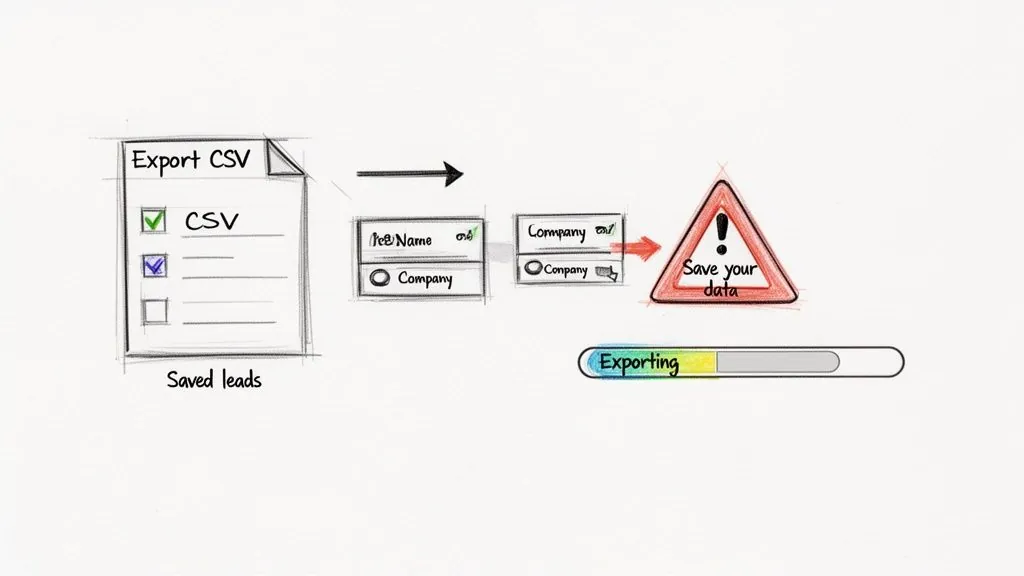
- Export Your Saved Leads: This is non negotiable. Get your saved leads out of Sales Navigator and into a CSV file. You can then upload them to your CRM or whatever tool you're using next.
- Document Your Account Lists: Whether you do it manually or find an export option, make sure you have a record of every custom account list. These lists often represent your most strategic and well researched market segments.
- Save Key Conversations: You can't bulk export InMail history, unfortunately. The next best thing is to manually copy and paste any critical exchanges into a separate document.
- Burn Through Your InMail Credits: Don't let them go to waste! Any unused InMail credits disappear at the end of your billing cycle. Use them for one last outreach push to your highest priority prospects.
Think of your Sales Navigator data as a company asset. You wouldn't just toss your customer database in the trash. Treat your curated lead lists with the same respect, protecting them is the most critical step in this whole process.
How to Export Your Leads and Accounts
The most important action item here is exporting your leads. Thankfully, Sales Navigator has a built in feature for this, though it’s not always the most obvious button on the page. You can select leads right from a saved list and download them as a CSV.
The process itself is pretty straightforward. Just head over to one of your lead lists, select the people you want to keep, and look for an export option. This will create a file with all the key details: name, title, company, and, most importantly, their LinkedIn profile URL.
Here's the catch: those URLs are often in a Sales Navigator specific format. To make them truly useful everywhere else, you'll need to convert them into standard LinkedIn profile links. We walk you through that exact process in our guide on how to convert Sales Navigator URLs to standard LinkedIn URLs. It's a must do final step.
By taking just a few minutes to get your data out, you're not just canceling a tool. You're strategically migrating your sales intelligence, making sure all that hard work keeps paying off long after your subscription ends.
Smarter Lead Generation After Sales Navigator
So, you’ve pulled the plug on your Sales Navigator subscription. That doesn’t mean your lead generation efforts are over; it means they’re about to get a whole lot smarter. Now that you've freed up budget and, more importantly, have that crucial list of leads you exported, it's time to shift gears. Let's move away from the manual grind and toward a more efficient, automated way of filling your pipeline.
Let's be honest: one of the biggest frustrations with Sales Navigator is the sheer amount of manual labor involved. You spend hours searching for prospects, building lists, and then even more time trying to write cold InMails that don't get ignored. What if you could automate the best part of prospecting, starting real conversations, without sounding like a robot?
Shifting From Manual Prospecting To Automated Engagement
Modern sales is about meeting prospects where they already are. While LinkedIn’s search filters are powerful, the real gold is found in the comment sections of popular posts. This is where your potential customers are actively discussing their pain points, sharing insights, and dropping clear buying signals.
This opens up a whole new way of thinking about prospecting, powered by a new class of tools. Instead of just finding people, these tools help you engage with them intelligently and at scale.
Imagine your workflow completely transformed:
- You're automatically tracking conversations started by key industry figures or posts mentioning specific topics relevant to your product.
- An AI powered assistant helps you draft a genuinely insightful comment that adds value to the discussion, instantly positioning you as a knowledgeable resource.
- A prospect sees your contribution, clicks on your profile, and a warm conversation starts: all without a single cold message.
This isn't science fiction; it's exactly what platforms like PowerIn are designed for. They essentially turn your LinkedIn profile into an engagement engine that works for you 24/7, attracting inbound interest while you’re busy with demos and closing deals.
The goal is to stop chasing leads and start attracting them. By consistently adding value in the right conversations, you build a reputation that brings prospects directly to your door.
Of course, once you've moved on from Sales Navigator, it's wise to explore all your options. You might want to check out some other LinkedIn Sales Navigator alternatives to find the perfect fit for your new strategy.
From A CSV File To A Thriving Pipeline
Remember that valuable CSV file you exported before canceling? That's not just a list; it's the foundation of your new, automated engagement strategy.
Instead of letting it sit there, you can use it to build a dynamic workflow. Take that list of prospects and start monitoring their activity. When someone from your target list posts on LinkedIn, you're the first to know and can be the first to leave a thoughtful comment. This approach builds familiarity and trust long before you ever think about making a pitch. It’s the difference between being another stranger in their inbox and a familiar face in their professional circle.
Let’s put it side by side. The old way of using Sales Navigator for manual prospecting looks very different from the new way of using a tool like PowerIn for automated engagement.
Sales Navigator vs. PowerIn: A Head to Head Comparison
This table really highlights the jump from simply finding people to actively engaging them and starting real business conversations.
| Feature | LinkedIn Sales Navigator (Core) | PowerIn |
|---|---|---|
| Primary Goal | Finding and saving leads | Engaging leads to start conversations |
| Core Activity | Manual search and outreach | Automated, contextual commenting |
| Time Investment | Hours per week of manual work | Minutes per week for setup & review |
| Lead Temperature | Cold to lukewarm | Warm to hot |
| Cost | High monthly fee ($99+) | More cost effective, focused ROI |
By making this shift, you can reinvest the money you were spending on Sales Navigator into a system that generates warm leads around the clock. You're no longer just paying for access to a list; you're building a machine that creates a steady stream of interested prospects who already know who you are. Now that's a smarter way to grow your business.
Common Questions About Canceling Sales Navigator
Alright, so you've gone through the steps, but a few questions are probably still nagging at you. It’s completely normal. Understanding exactly what happens to your data, your credits, and your billing after you hit "cancel" can be a little confusing. Let's clear up the most common points of confusion so you can move forward without any surprises.

Here are the direct answers to the questions I hear most often from people making the switch.
What Happens to My InMail Credits When I Cancel?
This is the big one, and the answer is critical. When you cancel Sales Navigator, you will lose all unused InMail credits at the end of your final billing period. This includes your monthly allowance and any credits you've rolled over.
They don't get saved, and you can't get them back. It's a strict "use it or lose it" policy.
That’s why you absolutely must plan to use them before your access is gone. In the last few days or weeks of your subscription, go on an outreach blitz. Send those personalized messages to your most important prospects. Don't let that value just disappear.
Can I Get a Refund for My Sales Navigator Subscription?
I'll be direct: for most people, a refund isn't going to happen. LinkedIn's policy is pretty rigid. If you have an individual (Core) plan, they generally don't offer refunds for partial subscription periods. Once you've paid for the month or year, you get to use it for that time, but you won't get money back for cutting it short.
There are, however, a few exceptions to the rule:
- Team and Advanced Plans: As we mentioned earlier, admins can get a prorated refund when they return unused seats. This is a huge advantage of the team based plans.
- Recent Renewals: In very rare cases, you might get a refund if you request it within seven days of the charge and haven't used any premium features in that time. You'll have to contact support for this.
- App Store Subscriptions: If you originally subscribed through Apple’s App Store or the Google Play Store, you're under their refund policies. You’ll need to make your refund request directly with Apple or Google, not LinkedIn.
For most individual users on a monthly plan, your best bet is to simply cancel before the next charge hits. Don't bank on getting a refund for time you've already paid for.
How Long Does the Cancellation Process Take?
This one trips people up all the time. The cancellation itself is instantaneous, the second you confirm it, your account is officially set to expire. But here’s the key part: your access to Sales Navigator features does not end right away.
You get to keep using everything (your lists, your InMails, all of it) until the very end of your current billing cycle.
So, what does that look like?
- Paid Monthly Subscription: Let's say your billing date is the 15th of the month. If you cancel on the 1st, you still have a full two weeks to wrap things up, export your data, and use your InMails.
- Free Trial: If you're on a trial, you can cancel at any point before it ends to avoid the first charge. Your access will continue for the remainder of the trial period.
Knowing this timeline gives you a major advantage. You can cancel as soon as you've made the decision, which removes the risk of forgetting and getting billed again. At the same time, you still have a window to extract the last bit of value from the platform.
Ready to replace manual prospecting with a smarter, automated approach? PowerIn uses AI to post high quality, contextual comments on LinkedIn, attracting warm leads and starting meaningful conversations for you 24/7. Stop chasing prospects and start building a pipeline that grows itself. Begin your free trial with PowerIn today.